How to Change Face Expressions with AI Consistently
Change face expressions with AI while keeping identity locked. Sozee delivers campaign-ready results in minutes — try it free today.
The Sozee teamAugust 7, 20269 min read
Key Takeaways for Expression-Perfect Campaigns
Traditional reshoots for new expressions cost time and money, and often introduce visual inconsistencies across a campaign.
A four-step workflow using locked reference assets and Sozee’s Photo Control keeps likeness consistent across expressions and settings.
Free tools like Hugging Face Spaces and OpenArt work well for single-image tests but do not support batch consistency or reusable libraries.
Sozee’s Expression slider, saved libraries, and Agent create campaign-ready sets with locked identity, environment, and scheduling in under 15 minutes.
Three core assets set up reliable expression editing from the start.
Three reference photos of the same person or AI character, taken in consistent lighting, showing the face at front-on, three-quarter, and slight side angles.
Access to a free AI expression editor such as Hugging Face Spaces or OpenArt for single-image testing in Step 2.
A Sozee account for Steps 3 and 4, where batch consistency, saved libraries, and scheduling become available.
Reference photos should be shot at a 1:1 or 4:5 aspect ratio for social-first output, or 16:9 for banner and cover use. These aspect ratios match the final output dimensions, which reduces cropping that can shift facial positioning and distort features. Within those dimensions, avoid heavy filters, strong side lighting, or partial occlusion in reference images, because these factors are primary causes of identity drift in downstream edits.
Step 1: Build a Locked Likeness from Reference Photos
Upload the three reference photos described in Prerequisites to Sozee’s character builder. The platform reads the set as a whole and reconstructs a locked likeness model that persists across every subsequent generation. No training period is required, and the reconstruction completes immediately.
Keep character descriptions factual and specific at this stage, so the model focuses on real traits rather than style.
“Woman, 28, medium skin tone, dark brown eyes, straight black hair to shoulder, no makeup, neutral expression, studio lighting”
Common Pitfall: Identity Drift. When reference photos span multiple days or lighting conditions, the AI averages across them and produces a composite that matches none of the originals precisely. Shoot or select all three references in the same session, under the same light source, before uploading.
Step 2: Validate Expression Concepts with Free Tools
Free tools like Hugging Face Spaces and OpenArt’s face editor help confirm that an expression concept reads correctly before you commit to a full batch. Upload one reference image, select a preset expression such as smile, neutral, surprised, or focused, or use a slider if available, then generate a single output.
To keep the test image close to your reference, structure prompts so they explicitly preserve background and lighting. Prompt templates for free-tool expression testing include the following examples.
“Same person, wide genuine smile, teeth visible, eyes crinkled, same background and lighting”
Common Pitfall: Lighting Mismatches. Many free tools process expression geometry without referencing the original light source direction. A smile generated under a left-key-light reference can render with fill-light shadows that did not exist in the source. If this occurs, add a lighting descriptor to the prompt, such as “key light from left, soft shadow on right cheek”.
Free tools are adequate for one-off tests, as detailed in the comparison table below. Step 3 handles campaign-scale production where you need consistent identity across many images.
Step 3: Use Sozee Photo Control for Batch Expression Consistency
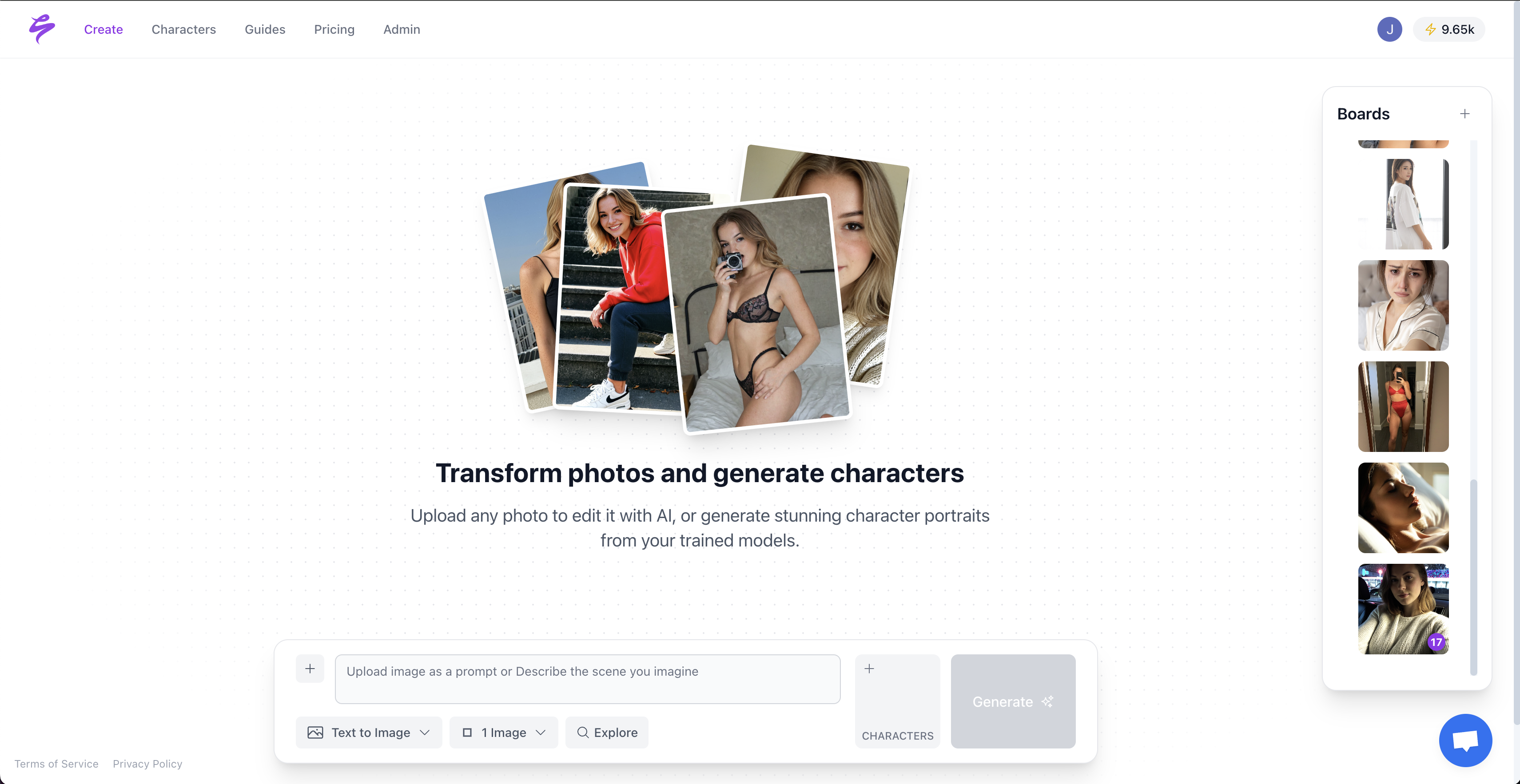
Inside Sozee’s Photo Control panel, the Expression dimension is one of five directable controls, alongside Setting, Outfit, Shot style, and Object. Set the Expression slot to the target mood by typing inline, uploading a reference, or selecting from a saved expression library built in previous sessions.
Sozee AI Platform
Once the Expression is set, activate Photo Shoot. Using the locked likeness model from Step 1, a single source image becomes a coherent set of up to ten outputs where only angle, pose, and expression vary. A five-expression campaign set, such as smile, laugh, focused, playful, and neutral, across two settings produces ten images in a single run.
GIF of Sozee Platform Generating Images Based On Inputs From Creator on a White Background
Unlike the free-tool templates in Step 2, Sozee’s prompts use the @ symbol to reference saved library assets, which locks character, environment, and outfit across the entire batch. Prompt templates for Sozee’s Expression control include the following structures.
“@[character-name], @[bedroom-environment], @[casual-outfit], medium shot, genuine laugh, head tilted slightly right”
“@[character-name], @[studio-setting], @[brand-outfit], close-up, focused and confident, direct eye contact”
Common Pitfall: Over-Smoothed Skin. High-intensity expression sliders on some AI tools apply skin smoothing as a side effect of expression geometry adjustment. In Sozee, keep the Expression descriptor specific to the emotional state rather than the physical deformation, such as “genuine smile” instead of “stretched mouth corners”. This approach preserves skin texture.
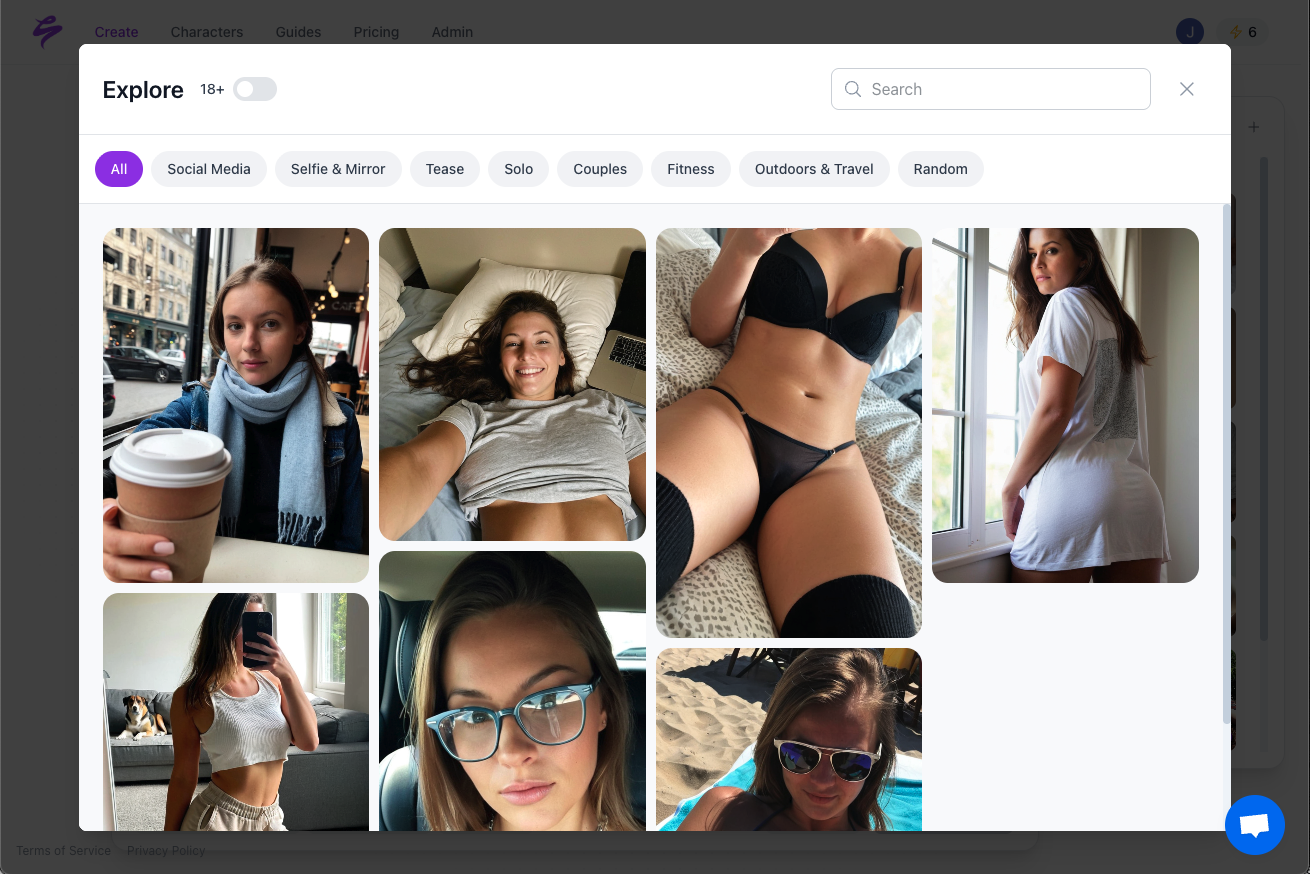
Save each expression configuration to the library after the first successful run. Every subsequent campaign using the same character can pull the saved expression directly, which removes the need for re-prompting. Build your reusable expression library now.
Use the Curated Prompt Library to generate batches of hyper-realistic content.
Step 4: Polish Outputs and Schedule with the Agent
After Photo Shoot completes, review outputs in the Vault. Any frame requiring correction, whether a shadow artifact, a background inconsistency, or an expression that reads slightly off, goes to Sozee’s inpainting tool, which handles all localized fixes through the same paint-and-describe workflow. Paint over the affected area, describe the correction, and attach a reference image if the fix requires a specific texture or color match.
Once the set is approved, open the Agent. Describe the campaign calendar in plain language, including platform targets, posting frequency, caption tone, and any platform-specific format requirements. The Agent reads the Vault, selects the appropriate images, writes captions per platform, and builds a weekly or monthly schedule, writing directly into the Scheduler rather than producing a summary for manual entry. The schedule publishes to Instagram, TikTok, X, Facebook, Reddit, and Fanvue from a single interface.
Free vs. Paid Expression Editing Tools
The table below summarizes the core capability differences that guide whether free tools or Sozee fit your production scale and consistency needs.
Tool
Likeness Lock
Batch Size
Native Scheduling
Hugging Face Spaces (free expression tools)
None, each generation is independent
1 image per run
None
OpenArt (free tier)
Partial, prompt-dependent, not reference-locked
1–4 images per run, no set coherence
None
Sozee (Photo Control + Photo Shoot)
Full, locked from uploaded reference set, consistent across all outputs
Up to 10 per Photo Shoot run, identity and environment locked
Free tools serve expression concept validation. They do not support the batch consistency, reusable asset libraries, or native publishing that campaign-scale production requires. The table above reflects each platform’s documented feature set as of July 2026.
Success Metrics and Advanced Workflow Extensions
A well-executed run of this workflow produces a 10-image set with five expression variants in under 15 minutes, with a visual identity match that holds across all frames. The same face, body proportions, and environment appear throughout the set, which covers a full week of daily posts for a single campaign.
Advanced applications built on this foundation include the following options.
Expression libraries: Save five to ten validated expression configurations per character. Each library entry is reusable across every future campaign without re-prompting.
Reel cloning: Paste a high-performing Instagram or TikTok link into Sozee’s reel cloning tool. The platform rebuilds the motion in the locked character’s likeness and applies the same expression arc as the source clip.
Auto-generated calendars: The Agent reads campaign briefs and performance analytics together, proposes a posting schedule weighted toward formats that have driven the highest engagement, and writes it into the Scheduler in one session.
The compounding effect is measurable. Every environment, outfit, and expression saved in a session reduces setup time for the next campaign. A roster of ten clients managed through Sozee’s team workspaces shares no assets across accounts, because each workspace is fully isolated, but the operator’s own workflow accelerates with every shoot completed. See the time savings in your first Photo Shoot.
The following questions address common implementation concerns and platform capabilities that appear when you scale this workflow across multiple clients or content types.
Frequently Asked Questions
How accurate is AI expression editing at preserving the original face?
Accuracy depends on the quality and consistency of the reference images provided. When three well-lit, consistent-angle reference photos are used in Sozee’s character builder, the locked likeness model holds bone structure, skin tone, eye shape, and facial proportions across all generated outputs. Free tools that operate without a locked reference model are more prone to identity drift, especially on expressions that require large geometric changes such as a wide open-mouth laugh.
Is there a free way to change face expressions with AI?
Yes. Tools available on Hugging Face Spaces and OpenArt’s free tier allow single-image expression swaps at no cost. These tools work well for testing whether an expression concept reads correctly before you commit to batch production. They do not support locked likeness across multiple images, reusable asset libraries, or native scheduling. Sozee offers a sign-up that provides access to Photo Control, Photo Shoot, and the Agent for scalable campaign production.
Is my likeness or my clients’ likenesses kept private?
Sozee’s privacy architecture isolates each character model to the account that created it. Likeness models are never used to train shared or public models, and no generated output from one account is accessible to another. For agencies, each client workspace is fully isolated, so characters, vault contents, connected social accounts, and credits do not cross workspace boundaries.
Can this workflow be used for NSFW content?
Sozee supports a full SFW-to-NSFW content arc through Photo Shoot, with the pacing and ceiling set by the creator. NSFW output follows Sozee’s compliance and verification requirements, which are built into the character setup process rather than applied as a post-generation filter. Expression editing within NSFW sets follows the same locked-likeness and batch-consistency rules as SFW output.
Does this workflow run on mobile?
Sozee’s Photo Control panel, Photo Shoot, the Agent, the Vault, and the Scheduler are all accessible on desktop, iPad, and mobile. The Agent suits mobile use particularly well, because a creator can describe a campaign idea in plain language, answer the Agent’s clarifying questions, and receive a finished shoot setup ready to generate without interacting with the control panel directly. Live Mode, which renders the character onto a real-time camera feed, also runs on mobile.
What export resolution and format options are available?
Sozee supports output resolution up to 4K for images, with upscaling to 2K or 4K available in the refinement suite for any image that was generated at a lower resolution. Video output runs up to 1080p at up to fifteen seconds per clip, in every major aspect ratio, including 1:1, 4:5, 9:16, and 16:9. All exports are delivered as standard image and video files compatible with direct upload to any social platform or delivery to brand clients.
Put this guide to workThree photos · first set free
Start free